 JSON2VIDEO Documentation
 Connections
A connection is a set of credentials you save once in the dashboard and use by its ID. The secret part (an API key, a password or a secret access key) is stored encrypted and never appears in your movie JSON or in API requests.
Connections live at json2video.com/dashboard/connections. The page has two tabs:
| Tab | What it holds | Used from |
|---|---|---|
| API providers | Your own API keys for a provider — today, ElevenLabs | Voice elements (connection) |
| Output destinations | Webhooks, FTP servers, SFTP servers and Amazon S3 buckets that receive your rendered videos | exports[].destinations[] (id) |
Keys for your JSON2Video account are a different thing: they live under API keys.
Managing connections requires the Manager role. Every plan can add connections.
API providers
ElevenLabs keys
Use your own ElevenLabs API key when you want voices generated with your ElevenLabs account: the voices of your account (cloned, designed or library voices) become available, and the usage is billed to your ElevenLabs account instead of running on JSON2Video's key.
All your ElevenLabs keys are listed in one table:
| Column | What it shows |
|---|---|
| ★ | The default key. Voices without connection use it. |
| ID | The name you use in "connection": "<id>". Copy it with the copy button. |
| Key | The last 4 characters of the key (for example …3f9a), or Saved when only the key is stored. The full key is never shown again. |
| Status | The result of the last Test (see below). |
| Last used | When a render last generated a voice with this key. Recorded at most once an hour. |
Each row has a Test button and a menu with Replace key, Copy JSON snippet ("connection": "<id>") and Remove.
Add a key
- Create an API key in your ElevenLabs account (profile menu → API Keys). Give it at least Text to Speech access.
- In API providers, click Add key on the ElevenLabs card.
- Keep the suggested ID (
elevenlabs, thenelevenlabs-2, …) or type your own. See Connection IDs. - Paste the key. ElevenLabs keys start with
sk_: the dialog does not let you save a key that doesn't. - Optionally click Test key, then Save key.
If you have no default key yet, the key you add becomes your default (★) — the dialog tells you so before you save. If you already have a default, the new key is saved without a star.
The default key (★)
The starred key is used for every ElevenLabs voice that has no connection, in every render. You can have one default key.
- Click the empty star of a key to make it the default. When you have no default yet, the dashboard asks you to confirm, because from then on your voices are billed to your ElevenLabs account.
- Click the star of another key to move the default there (no confirmation).
- Click the filled star to remove it. Voices without
connectiongo back to JSON2Video's key.
Which key a voice element uses:
| In the voice element | Key used |
|---|---|
No connection |
Your default key (★) if you have one; otherwise JSON2Video's key |
"connection": "<id>" |
The key saved with that ID, starred or not |
"connection": "none" |
JSON2Video's key, even if you have a default key |
The default key applies to voice elements only. Automatic subtitles are unaffected. See the voice element's connection property for examples and error messages.
Test and Status
Test asks ElevenLabs whether it accepts the key. Nothing is generated and nothing is billed. The result is saved as the key's Status:
| Status | Meaning |
|---|---|
| Works | ElevenLabs accepted the key. |
| Limited | ElevenLabs recognised the key, but it lacks the permission the test uses. It can still work for voices if it has Text to Speech access. |
| Rejected | ElevenLabs rejected the key. Replace it with a working key. |
| Error | The key could not be checked (no answer, or a temporary error at ElevenLabs). Test it again later. |
| Wrong format | The key does not start with sk_, so ElevenLabs will most likely reject it. Replace it. |
| Not tested | The key has not been tested since it was saved. |
A test never blocks saving or using a key. Replacing a key resets its Status to Not tested.
Replace or remove a key
- Replace key stores a new key under the same ID. Renders that use this connection switch to the new key; its ID, star and "Last used" stay.
- Remove deletes the key. Renders that reference
"connection": "<id>"will fail. If it was your default key, voices withoutconnectionuse JSON2Video's key again.
Other keys
Keys saved before this page existed, whose ID does not tell us which service they belong to, are listed under Other keys. They are never used as a default, but they keep working in renders that reference them with connection.
- This is an ElevenLabs key moves the key to the ElevenLabs table (without a star).
- Remove deletes it.
Keys whose ID mentions ElevenLabs (for example my-elevenlabs-connection) are already shown in the ElevenLabs table, without a star.
Output destinations
An output destination is where JSON2Video delivers a rendered video. You can create as many as you need of each type:
| Type | What happens after a render |
|---|---|
| Webhook | JSON2Video sends a POST request with the render's details to your URL. See Webhooks. |
| FTP / SFTP | JSON2Video uploads the video to your server. See FTP / SFTP delivery. |
| Amazon S3 | JSON2Video uploads the video to your S3 bucket, with the access key of an IAM user you create for it. See Amazon S3 delivery. |
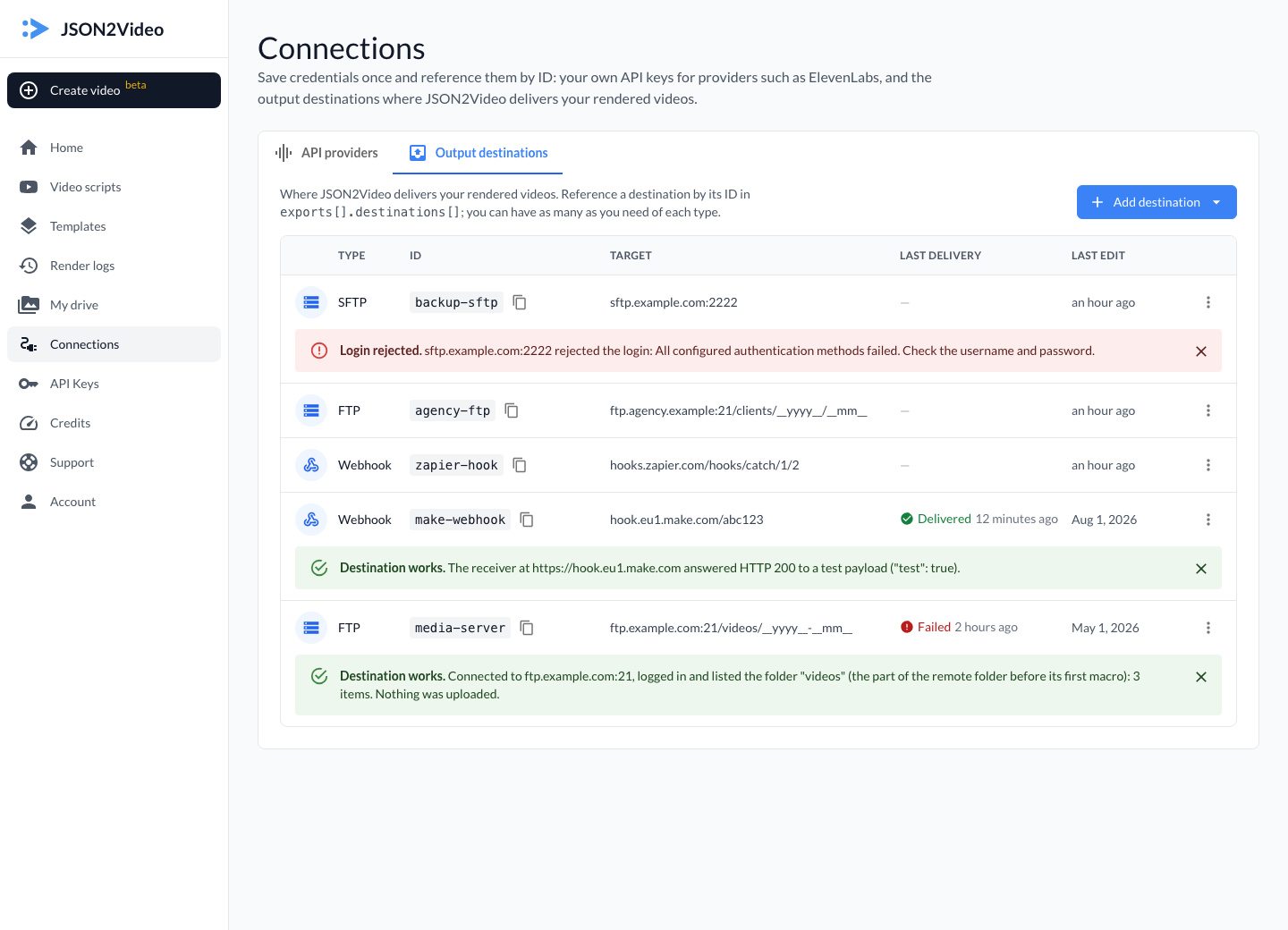
Add a destination
Click Add destination and pick Webhook, FTP, SFTP or Amazon S3.
| Field | Types | Notes |
|---|---|---|
| Connection ID | all | The ID you use in your movie JSON. See Connection IDs. |
| Webhook URL | Webhook | Must start with https://. Hosts such as localhost, private or reserved IP addresses, and JSON2Video's own API are refused. |
| Host | FTP, SFTP | Host name or IP only — no ftp://, no folder. |
| Port | FTP, SFTP | 1–65535. Empty means 21 (FTP) or 22 (SFTP). |
| Username, Password | FTP, SFTP | Required when you create the destination. When you edit it, leave the password empty to keep the stored one. |
| Remote folder | FTP, SFTP | Optional. Created if it does not exist. Empty means the folder you log in to. |
| File name | FTP, SFTP | Optional. Empty means the rendered file's own name (__filename__). |
| Bucket | Amazon S3 | The bucket name only — no s3://, no URL, no folder. JSON2Video's own buckets are refused. |
| Region | Amazon S3 | The bucket's region, for example eu-west-1 (S3 console → the bucket → Properties → AWS Region). China and GovCloud regions are not supported. |
| Access key ID | Amazon S3 | The access key ID of an IAM user (starts with AKIA). Temporary keys (ASIA…) are refused. |
| Secret access key | Amazon S3 | Required when you create the destination. When you edit it, leave it empty to keep the stored one. |
| Folder | Amazon S3 | Optional. Empty means the root of the bucket. |
| File name | Amazon S3 | Optional. Empty means the rendered file's own name (__filename__). |
The folder and file name of FTP, SFTP and Amazon S3 destinations accept these macros:
| Macro | Replaced with |
|---|---|
__yyyy__, __mm__, __dd__ |
Year (4 digits), month, day |
__hh__, __nn__, __ss__ |
Hour, minutes, seconds |
__random__ |
6 random characters |
__filename__ |
Rendered file name, e.g. abc123.mp4 |
__filename_without_extension__ |
e.g. abc123 |
__filename_extension__ |
e.g. mp4 |
For Amazon S3, the dialog also shows the Minimal IAM policy for the bucket and folder you typed, with a copy button: attach it to the IAM user whose key you use. See Amazon S3 delivery for the whole setup in AWS.
Webhooks saved before this page existed that use http:// keep receiving your renders; the list shows a warning next to them, and you need an https:// URL to change the URL.
Use a destination in a movie
Reference the destination by its ID. Copy JSON in the row menu copies this snippet:
{
  "exports": [
    {
      "destinations": [
        { "id": "my-sftp" }
      ]
    }
  ]
}
For an Amazon S3 destination, the snippet also names the type: { "type": "aws-s3", "id": "my-s3" }.
Fields you add next to id override the saved ones for that render. For example, this uses the saved host and login of my-sftp but writes to another folder:
{
  "exports": [
    {
      "destinations": [
        { "id": "my-sftp", "remote-path": "/customers/acme/__yyyy__/" }
      ]
    }
  ]
}
An Amazon S3 destination accepts only remote-path and file next to id: the bucket, the region and the keys always come from the saved destination. Never put AWS keys in a movie — POST /v2/movies refuses it with the code aws_keys_in_movie. See Amazon S3 delivery.
Test a destination
Use Test destination in the form (before or after saving — nothing is saved by a test), or Test in the row menu.
- Webhook: JSON2Video sends one POST request shaped like a real delivery, with fake values and
"test": true. It really reaches your receiver, so an automation behind it runs once with the test data. The test waits up to 10 seconds for an answer (real deliveries wait 30 seconds). - FTP / SFTP: JSON2Video connects, logs in and lists the remote folder — only the part of the folder before its first macro, because macro folders are created by the delivery. Nothing is uploaded.
- Amazon S3: JSON2Video writes a small file,
json2video-test.txt, to the part of the folder before its first macro, and leaves it there: JSON2Video never deletes it. A new test overwrites it. Nothing is listed, read or deleted. See The test file.
| Result | Meaning |
|---|---|
| Destination works | The webhook answered with a 2xx status, the login and folder listing worked, or the test file was written to the S3 bucket. |
| Connected, with a warning | The login worked but the folder could not be listed — for example it does not exist yet. Deliveries create missing folders, so this works if the account may create it. |
| Login rejected | The server refused the username or password. |
| Access key rejected | Amazon S3: AWS does not know the access key ID, or the secret access key does not match it. |
| Test failed | Anything else: another HTTP status, no answer in time, the host could not be reached, the host resolves to a private address, or AWS refused the upload (no permission, wrong bucket or region). The message says which. |
When you edit a destination, the test uses your unsaved changes; an empty password or secret access key field uses the stored one.
Last delivery
The Last delivery column shows whether the last render that used the destination delivered (Delivered) or not (Failed), and when. Hover over it to see the error. A dash means no delivery has been recorded yet.
The result of every delivery of a render is also shown in Render logs → the render → Deliveries, and returned as destinations_result by GET /v2/movies.
Test limit
You can run up to 20 tests per hour (ElevenLabs keys and destinations together, counted per clock hour in UTC). After that, Test answers You can run up to 20 tests per hour. Try again after HH:MM UTC. Tests that are refused before anything is contacted (for example, a form error) do not count.
Connection IDs
IDs of new connections must:
- be 1–64 characters long, using lowercase letters, numbers,
-and_, starting with a letter or a number; - not be
none(reserved:"connection": "none"means "JSON2Video's key"); - not be a URL;
- not look like a secret.
Never put a key or a password in an ID. IDs are not encrypted: they appear in the dashboard, in logs and in your movie JSON. If an existing connection's ID looks like a secret, the dashboard shows a warning next to it: create a new connection with a plain name, update your movies, and delete the old one.
Existing connections keep their IDs, even if they don't follow these rules. IDs are used exactly as saved, so match the case and spelling in your movie JSON.
Security notes
- Keys, passwords and secret access keys are stored encrypted and are never shown again — only the last 4 characters of an API key.
- JSON2Video only connects to public internet addresses. A webhook, FTP or SFTP host that resolves to a private, loopback, link-local or reserved address is refused, both in tests and in deliveries.
- AWS keys are never accepted in a movie JSON, only in a saved Amazon S3 destination.
- Removing a connection is immediate. Renders that still reference its ID fail (voices) or record a failed delivery (destinations).